Faculties of Medicine and Dentistry
Division of Educational Support and Development
University of British Columbia
MEDICOL USER GUIDE
(Medicine Dentistry Integrated Curriculum On-Line
http://www.med.ubc.ca/webct.html)
By:
Serge Soolsma
Class of 2002
(Original version by:
Hamish Hwang, Class of 2000)
Introduction
Accessing the MEDICOL Website
Navigation Hints
The MEDICOL web site
Appendices:
Introduction
'It is our hope to make this a central resource for all; where students and faculty alike can place, find and gather and learn from the information therein.'
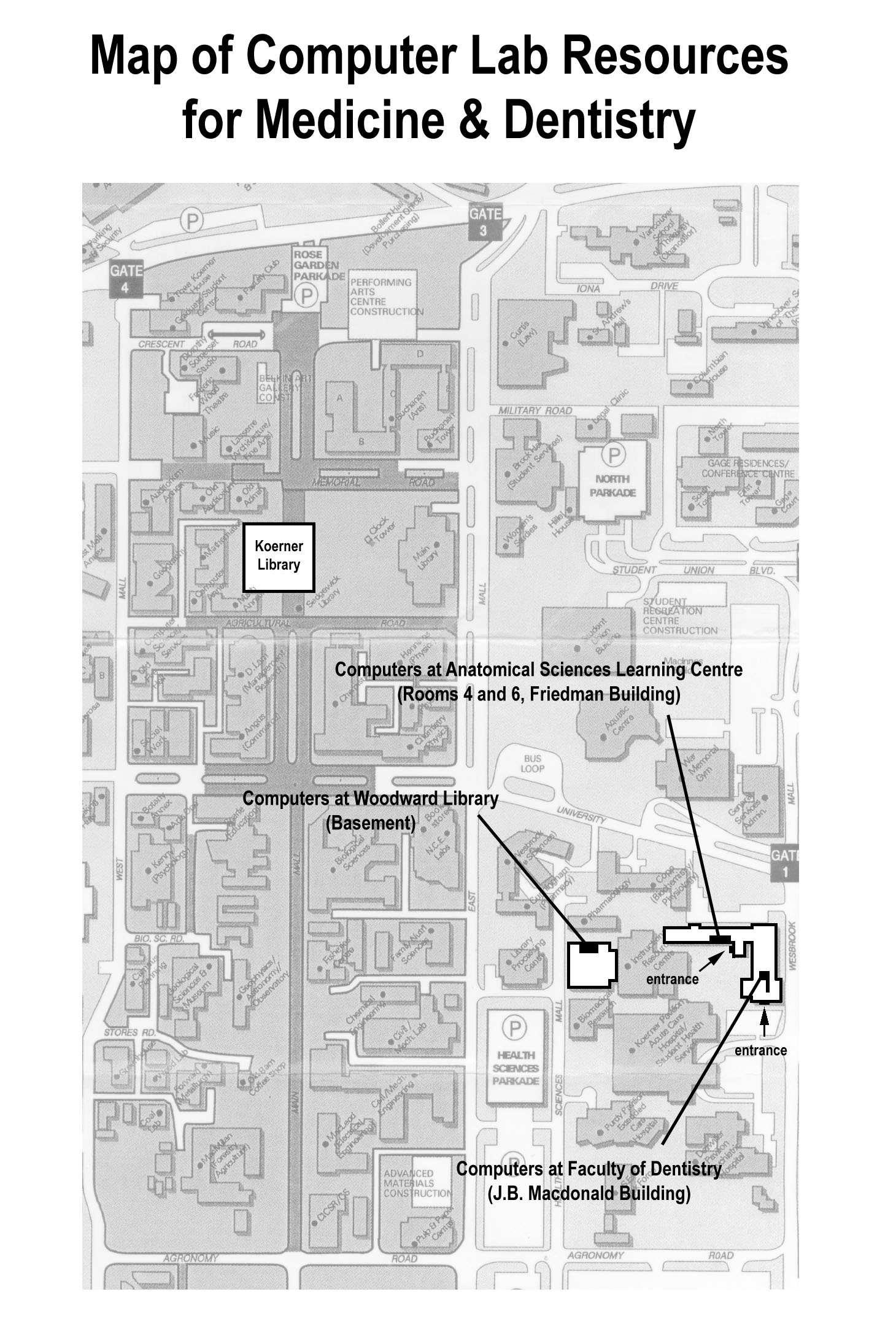
Although students are becoming more computer literate these days, there is still a large percentage that cringe and look nervously for furniture to hide under at the mention of the word "Internet". If you are one of these people, this step-by-step introduction guide to the Medicine and Dentistry Integrated Curriculum On-Line (MEDICOL) is for you. If you are one of the computer savvy, help out your fellow students by offering assistance. Once familiar with the MEDICOL web site features, this guide may be a useful reference for you as well. Computers are available for the exclusive use of medical and dental students in the Anatomy Computer Lab (basement of Friedman Bldg.) and in the basement of the Woodward Library. Computers that are open to all students are also located in the Koerner Library. (See Appendix II and III - Computer Lab Resources and Map of Computer Lab Resources)
Using MEDICOL will enable you to:
Please note the dynamic nature of the MEDICOL web site. Therefore, this guide may vary slightly with the actual site. If something doesn't match, DON'T PANIC! Just send email to Charlene Walsh cwalsh@interchange.ubc.ca if you have any questions or other concerns or to Marc Broudo mbroudo@interchange.ubc.ca if you are faculty, clinicians or tutors who want access to the MEDICOL site.
Accessing the MEDICOL Website
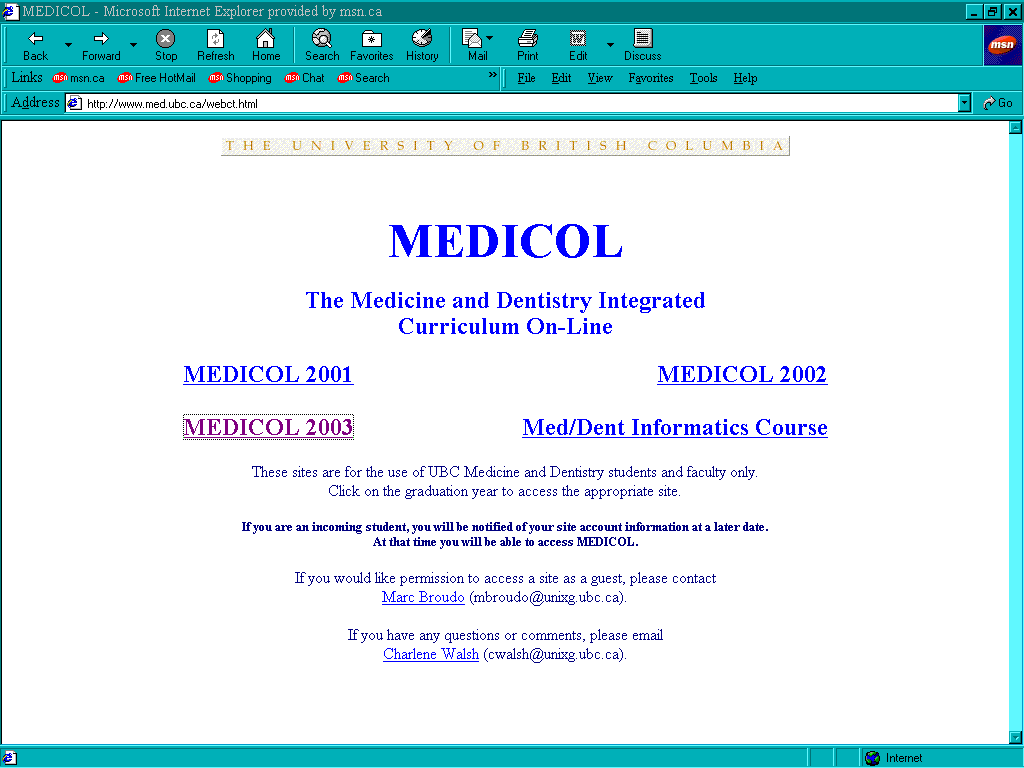
Access the MEDICOL site by filling in the following address in the location bar of your Internet browser (make sure to type it exactly as shown, then save it as a favorite on your browser so you do not have to type it in again):
Then click on your graduation year:
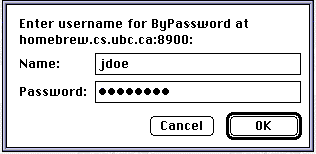
At the prompt, enter your login and password. Your login should be the first letter of your first name followed immediately by your last name, all in lower case letters (e.g., John Doe = jdoe). Your password is set to be your eight-digit student number and can be changed later.
Navigation Hints:
Many of the skills learned in the orientation informatics sessions are applicable here. If you can use a web browser than you can easily navigate around this site. There are a few peculiarities that you may come across and we have highlighted these in the information below. The number one recommendation that we can make is to go and try it. We feel that the best way to learn the site is to actually get into it and just experience some of its features. Please do not hesitate to click on, move your mouse over, or type anything you think is appropriate, as it not likely you will be able to do any harm. Learning by experience is the key. Also ask fellow students for any assistance. We also look for any feedback you may have. Please contact Charlene Walsh cwalsh@interchange.ubc.ca with any suggestions.
The MEDICOL web site
This is the Main page of the Med-Dent On-line site.
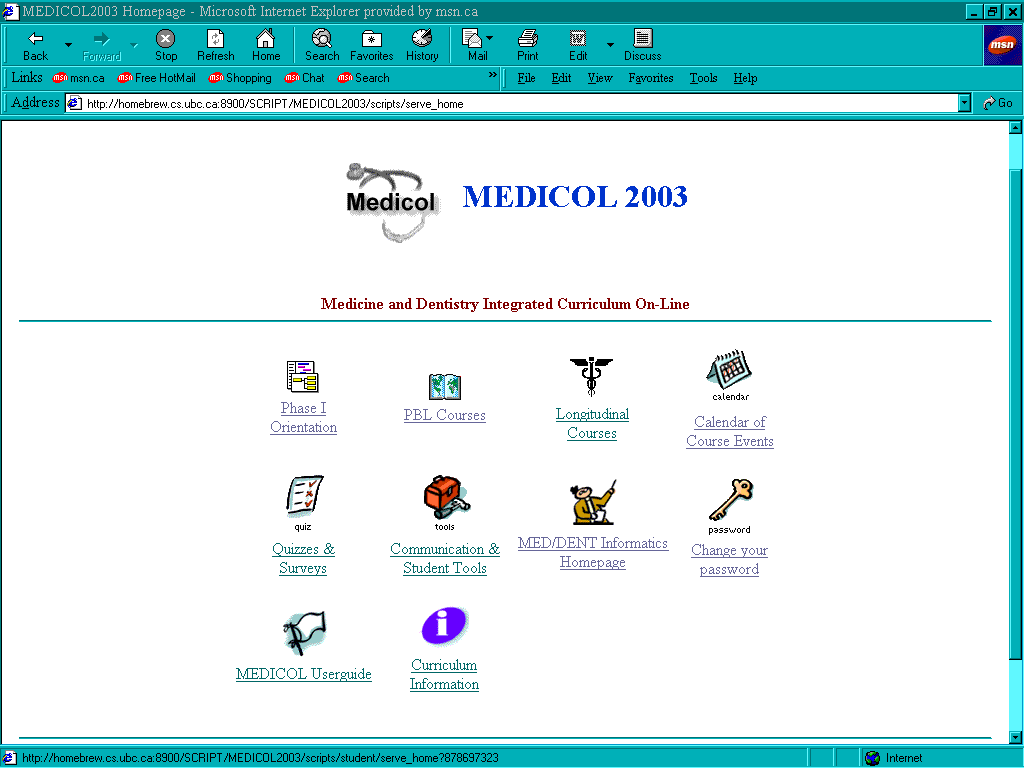
Click on Back Home anywhere within this site and it will bring you to this page.

 Phase I Orientation
This is the first look at the site as you will be using it for the next four years. It is based on a design known as frames. You may need to change your browser if you are not able to view this page properly. Use Netscape 4.0 or greater or Internet Explore version 3 or greater.
The browser should look as follows:
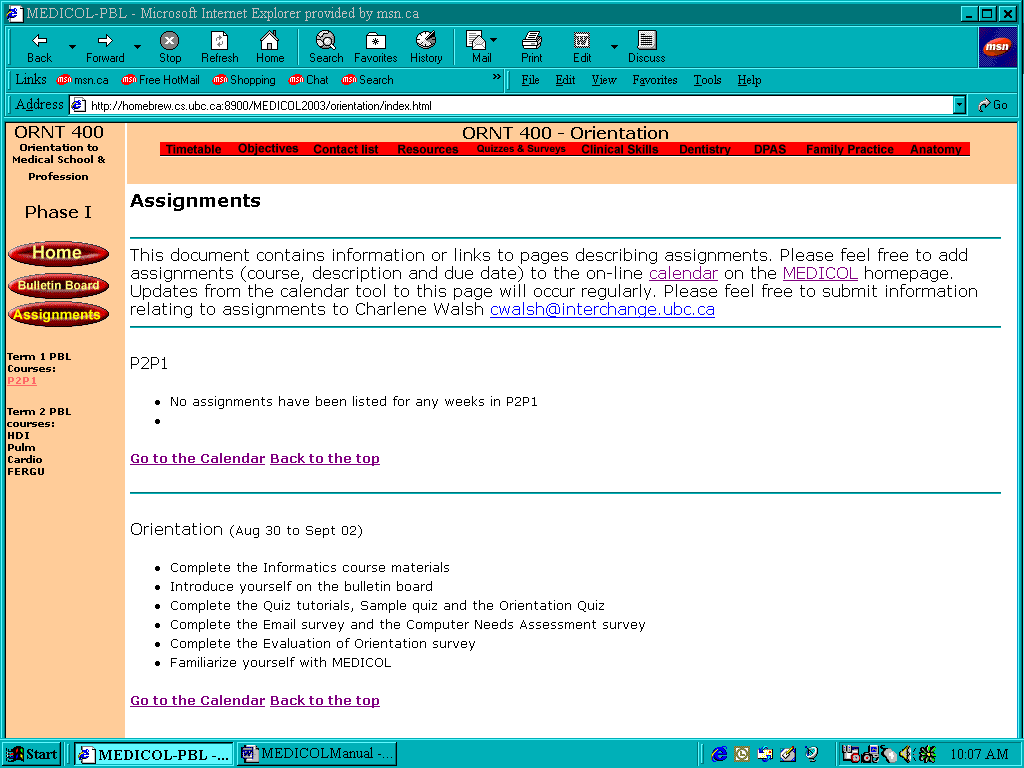
The bar on the left allows you to navigate in and around the site. By clicking on different sections of this bar, you may access the home page, the assignments page and the bulletin board. As well, you will be able to move amongst different blocks in the second semester of first year. The frame at the top allows you to navigate among related topics to the week. The large frame in the middle is where most of the information you may be looking for is provided.
 PBL Courses
The 'PBL Courses' link is similar to the Orientation section, but with a few additions. More of the buttons at the top frame will be available as well as the resources that are associated with them.
 Longitudinal Courses
This link will take you to the page where the courses that span the first two years of curriculum will be supported. These include Doctor, Patient and Society (DPAS), Clinical Skills (CS), Family Practice (FP), and Dentistry. This icon will take you to pages that are sequenced in a specific order. You can view the pages in order or go to the specific page you desire. Try it.
 On-line User guide
This is the document you are reading placed on to the web for future reference. It can be downloaded in a printed format for you to keep alongside your computer by going here.
http://homebrew.cs.ubc.ca:8900/MEDICOL2003/userguide/MEDICOLManual.doc
 Change Your Password
One of the first things you should do is change your password now that you are logged into the sight. Changing your password is a good idea to make sure no one else uses your login ID. To do this, click on 'Change Your Password' and follow the instructions. If you forget your new password, please contact Charlene Walsh cwalsh@interchange.ubc.ca
Throughout the year you will be accessing other WebCT based courses. Coordination between MEDICOL and these courses will permit you to use the same login and initial password for all sites. Therefore, if you change your password on MEDICOL, change all other site passwords so that movement between sites is simplified.
 Curriculum Information
This is a list of largely administrative references and resources, largely administrative, dealing mostly with the first two years of medical school. Welcome Information, application for concurrent completion of other degrees, student and faculty contact lists, information regarding particular school policies, survival tactics and course description are some of the pages you will find in here. Additional information summarizing objectives and course materials will be added to this section of the site throughout the year.
 Calendar
This is a public calendar that anybody may add information to. Information may be added for just the benefit of you (private seen in italics) or the benefit of all (public) to see by clicking on the specific date and completing the from which follows:
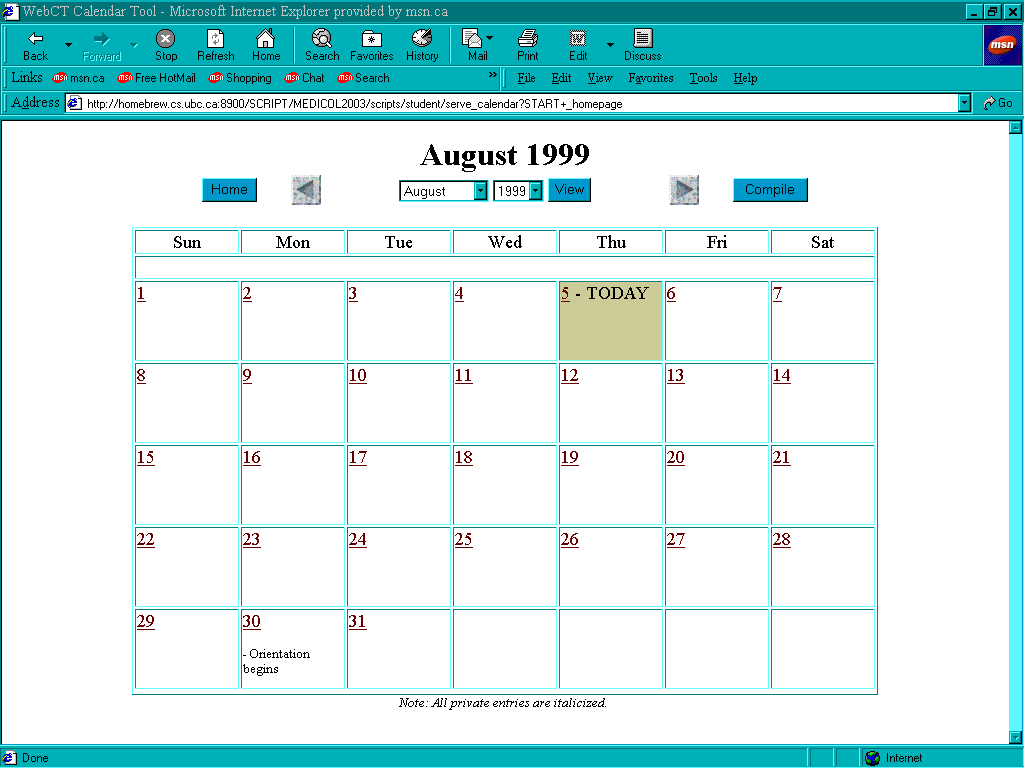
The Calendar icon will be highlighted in green when new additions have been made to the calendar. It will be the job of the Curriculum Representative to update the calendar at the beginning of the year and the responsibility of the class to keep it up to date as the year progresses. Curricular and extra curricular information may be added to the calendar with explanations. Please try to keep it orderly and organized, as many will use this as a resource. Further Information can be found here à
http://homebrew.cs.ubc.ca:8900/web-ct/help/calendar/add.html
http://homebrew.cs.ubc.ca:8900/web-ct/help/calendar/delete.html
 Quizzes
This link will take you to a page where all the quizzes are available. It will indicate their current availability, the duration the quiz is available, the maximum score, the score achieved on your first attempt at the quiz and the number of times the particular quiz has been attempted. It is important to note that these quizzes will not affect any grades in any way. These are provided as a resource to test yourself. It is also used as a guide to see how the class is progressing with the material. All identifying information is omitted when faculty sees the marks.
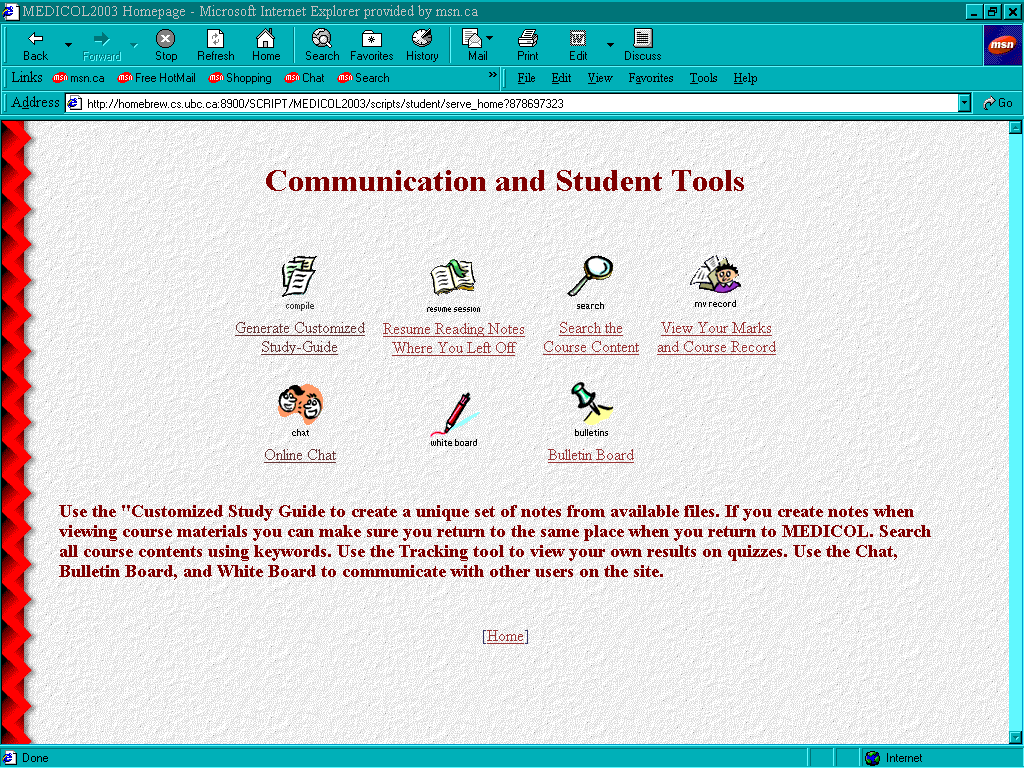
 Communication tools
This will lead you to tools that will allow you to communicate with others within the site. These tools include a study guide generator, note maker, bulletin board, white board and chat room.
 Bulletin Board
This tool is used by faculty and students to facilitate communication regarding during the study of PBL material. The material is organized in particular discussion topics (threads) that can be raised by various individuals. By clicking on the various headings you can view expanded versions of the comments. Comments are organized in a tier or 'threaded' fashion. More information about the tool can be found here à
http://homebrew.cs.ubc.ca:8900/web-ct/help/student/bulletin/bb_listing.html
http://homebrew.cs.ubc.ca:8900/web-ct/help/student/bulletin/bb_reading.html
http://homebrew.cs.ubc.ca:8900/web-ct/help/student/bulletin/bb_posting.html
http://homebrew.cs.ubc.ca:8900/web-ct/help/student/attach.html"
 White Board
The white board is designed to be used to work on graphics or outline systems when a simple text editor will not suffice. It may useful for diagrams, flowcharts or sequence of events. Rules for use are the same as those in the chat room. In the near future, we hope that this tool may be used on-line for various discussions among students and or faculty. More information can be found here à
http://homebrew.cs.ubc.ca:8900/web-ct/help/whiteboard/whiteboard.html
Again, because of the type of program that is used within your browser, it is easier to exit the whiteboard by clicking on 'close' from the 'file' drag down menu (top left corner of the screen) versus just closing the window (clicking on the 'x' in the top right corner.)
 Chat Room
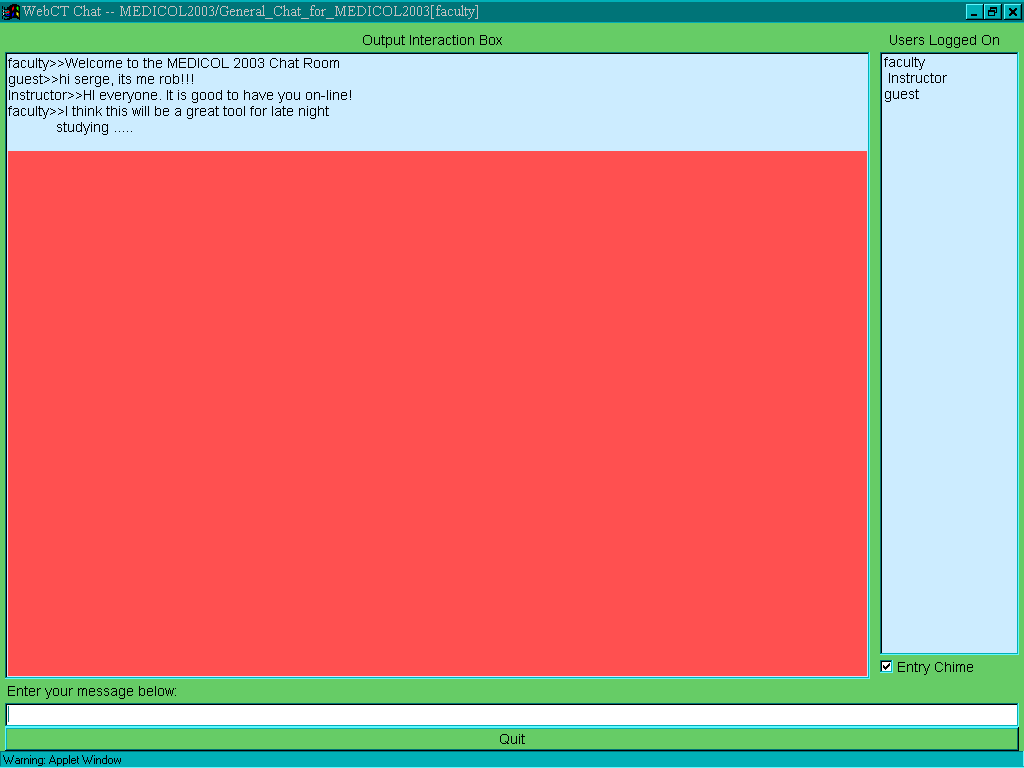
This is designed to be used to facilitate conversation among other users who are in the site. You can join a conversation by clicking the icon. It will take you to a page that will look as follows:
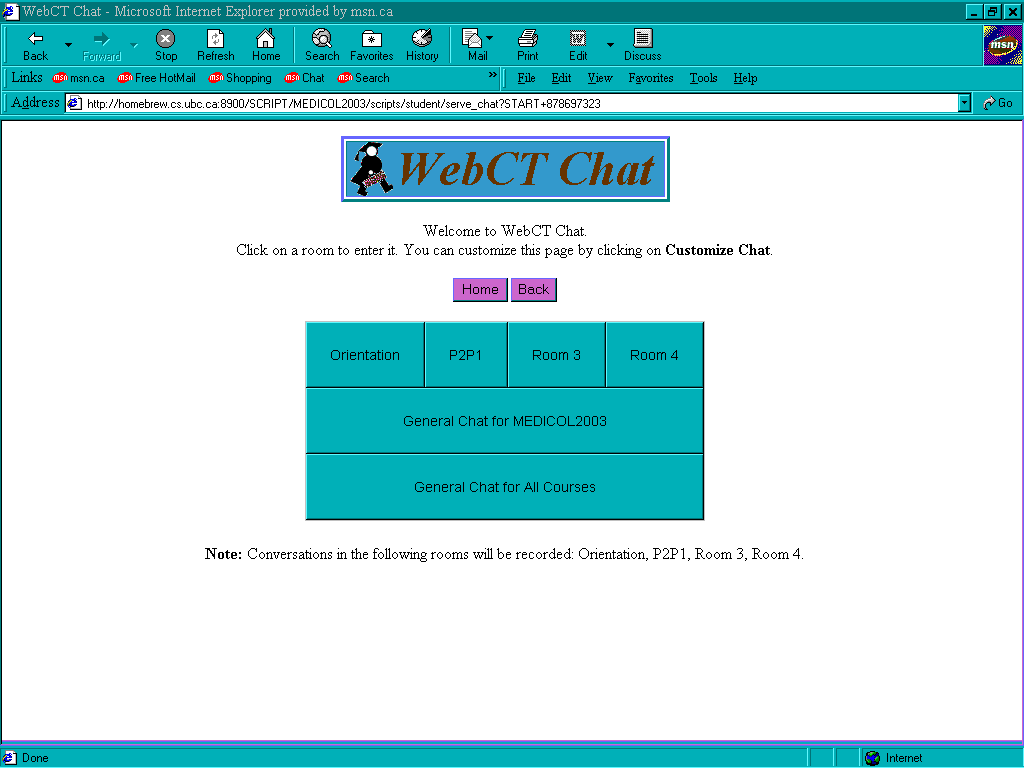
By selecting one of the rooms, a separate window will appear. You can now join in the conversation by typing in the line at the bottom of that window. Hitting return places the information onto the upper window, thus initiating a conversation. Note: In order to leave a room, it is necessary to hit the quit button at the bottom of the window since simply closing the window will not work.
Please do not:
Appendices:
I: A Note About Net-iquette
II: Medicine & Dentistry Computer Lab Resources
III: Map of Computer Lab Resources for Medicine & Dentistry
Appendix I
A Note About Net-iquette
by Hamish Hwang
Congratulations and welcome to the integrated Medical and Dental Curriculum and Class of 2003.
"Netiquette" is one of those clever two-in-one words that occur ever so often in the English language, like "spork". As medical and dental students you have access to several electronic mailing lists (sometimes called "listservs"). For instance, the medical students are automatically signed up for four mailing lists: med-all (for all medical students), med-01 (for the class of 2001), fom-all (for official messages pertaining to all medical students) and fom-01. The members on these mailing lists can send messages to everyone else on the mailing list by mailing one common address. This is both a good and a bad thing. It's good because information can be sent out to several people at the touch of a button. It's bad for exactly the same reason. Before you send out any messages on these mailing lists, ask yourself the following questions:
When you receive a message from someone using the mailing list (or over regular email) and you quickly compose a reply, ask yourself:
Some suggestions for use of the mailing list and email:
Email is a great communication tool but it can be easily abused. The process of sending messages to individuals as opposed to mailing lists is identical, so it is easy to forget that up to 500 people might be receiving your flippant reply to a general announcement. Take advantage of these mailing lists but use your discretion before pressing "send".
A good net reference about Netiquette can be found at:
THE CORE RULES OF NETIQUETTE http://www.albion.com/netiquette/corerules.html
Appendix II
Medicine & Dentistry Computer Lab Resources (see map Appendix III)
|
|
Anatomical Sciences Learning Centre |
Woodward Library | Faculty of Dentistry | ||
|
Location |
Rooms 4 and 6, |
Basement, Room 26 |
Basement, Teaching Lab |
J.B. Macdonald Building (Dental students only) |
|
|
Hours |
South East corner of Friedman Building Security door - requires 5 digit code |
during library hours |
From 9-5 and outside of Library course hours (schedule available at Woodward) |
available during non-clinic hours (clinic open 9:30-5:00 M-F) |
|
|
Computers |
10 Pentium PC's 10 Power Mac's |
10 Mac's |
20 PC's |
86 PC's running Windows NT |
|
|
Resources |
Netscape and Telnet software |
Netscape and Telnet software UBC Clinical Skills Modules |
Netscape/IE and telnet software |
||
|
Comments |
Leave computers on all the time. When finished with computers, quit all
your programs |
When finished with computers, quit all your programs |
When finished with computers, quit all your programs (especially Netscape) |
||
|
Contact Person |
Roseanne McIndoe |
Marc Broudo |
Peter Hinz |
||
|
Printing |
Local Area Network (LAN) printer available |
Note: Printing available on all main floor Woodward computers |
Printing soon to be available in PC Lab |
4 printers are networked to computer workstations |
|
Appendix III